Write ST, get an .xgwx that a real XG5000 has already checked
Works hands your ST to a real XG5000, runs the program check and returns an .xgwx. Double coil warnings, variable names, local engine vs server.
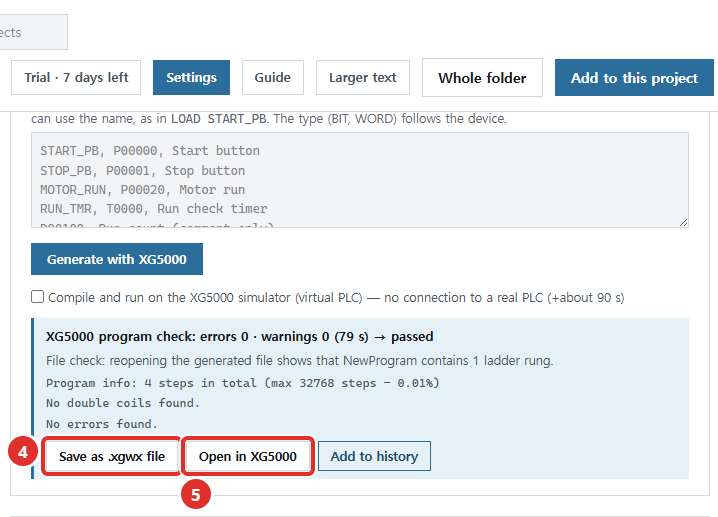
You have a page of ST, written by you, a colleague or an AI. Before it is worth anything, someone pastes it into XG5000, declares the variables, runs the program check and fixes whatever XG5000 complains about. Then the loop starts again.
What Works does about it
Generate .xgwx in AutoHano Works takes a CPU and a program as text. A real XG5000 creates the project, runs the program check and returns an .xgwx file, with errors and warnings exactly as XG5000 reported them.
- 35 CPU types: XGI and XGR take ST, XGB (IEC) takes IL, and XGK and XGB take ladder written as instruction lines (LOAD / AND NOT / OUT … END).
- Works pre-checks the program (double assignment, untyped numbers, nested SEL, overlapping addresses, ladder syntax). Errors stop the job before it reaches XG5000, with line numbers and reasons.
- Works never edits your existing files. Generation only creates a new file, and you decide whether to save it, open it or add it to the history.
A connected AI can use the same generator. AutoHano Works is not an LS ELECTRIC product.
Local engine or generation server
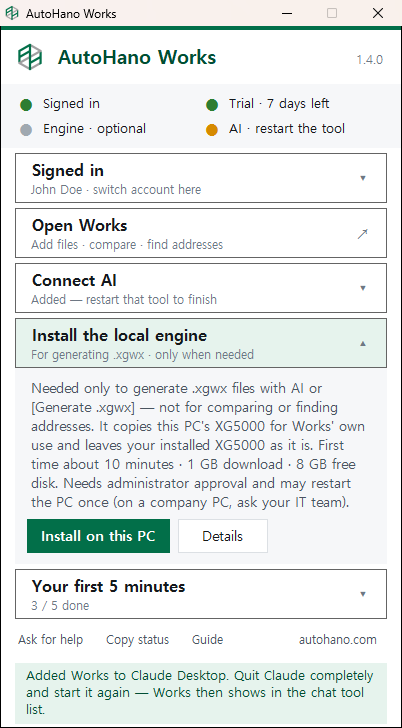
The local engine copies the XG5000 installed on your PC for Works' own use; your installed XG5000 stays as it is. Programs never leave the PC, and there is no limit on runs. If XG5000 is not installed, the installer from the LS ELECTRIC website is enough. In the launcher window, expand [Install the local engine] and click [Install on this PC]. The first install downloads about 1 GB and needs 8 GB of free disk space.
The generation server is used when there is no local engine: the job runs on the AutoHano server when a slot is free, so your program is sent there.
On the Free plan that is one generation server run a month, Starter has 10 a month, and the local engine with no limit is part of Unlimited. The 7-day trial opens everything, the local engine included.
Step by step
1. Open the panel and pick an example
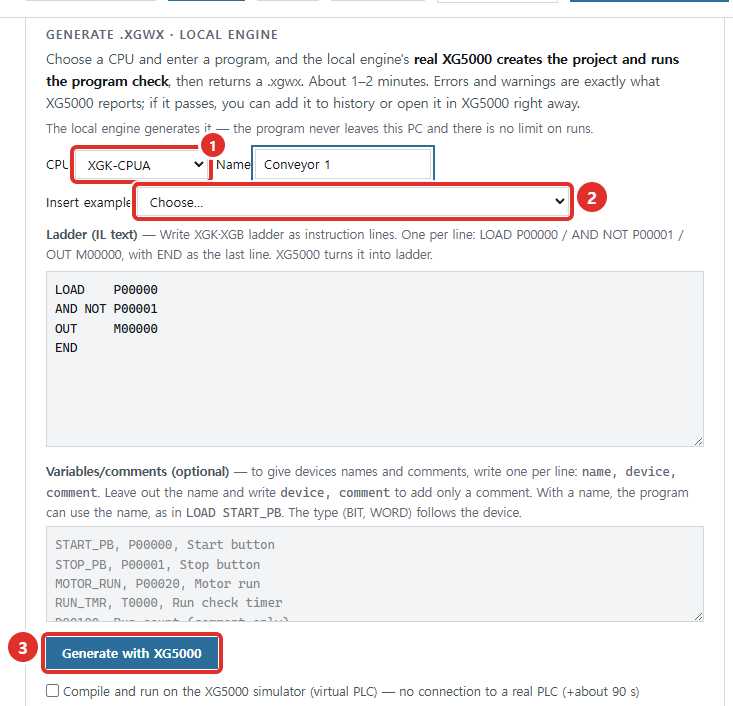
In Works, open [Settings] and find Generate .xgwx. ① Choose a CPU, ② pick something under [Insert example], and once the program box is filled in, click ③ [Generate with XG5000].
2. Use names instead of addresses
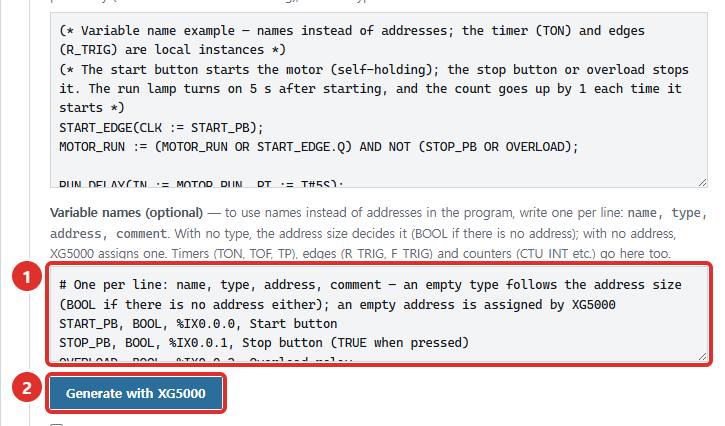
With an ST or IL CPU, a Variable names box appears below the program box: one variable per line, as name, type, address, comment. They go into XG5000 as global variables and as the program's local variables, so the program can say START_PB instead of %IX0.0.0. Leave the type empty and it follows the address size; leave the address empty and XG5000 assigns one. Timers, edges and counters (TON, R_TRIG, CTU_INT and so on) go here too, and the program calls them like RUN_DELAY(IN := MOTOR_RUN, PT := T#5S);. The example [Motor run · timer (variable names, XGI)] shows the whole pattern.
3. Read the result
The result comes back in a minute or two: a line such as "XG5000 program check: errors 0 · warnings 0 → passed", or the error lines with line numbers and reasons. Fix them and click again.
The File check line is Works reopening the generated file to make sure the program is really in it. For ST and IL it also confirms the program matches what you entered, and that the variables went in as written.

If it passed, [Save as .xgwx file] saves it to your PC, [Open in XG5000] opens it in the XG5000 on your PC, and [Add to history] keeps it as a Works project. With the local engine you can also tick "Compile and run on the XG5000 simulator (virtual PLC)" to compile it and run it on a virtual PLC, about 90 seconds more.
Double coil warnings (R0000)
A double coil warning, code R0000 in XG5000, means the same address is written in more than one place. In ST it shows up when the same output is assigned under different conditions, and it can appear even in different branches of one IF/ELSE. If that is intended, it is fine; check the branch conditions and execution order in XG5000.
To remove it, compute the value in a local variable and write the address only once, at the end of the program. The ST examples under [Insert example] are written this way and have no warnings. An illustrative sketch, not taken from the examples, where assigning %MW21 directly in each branch could raise R0000:
(* compute in a local WORD variable, write the address once *)
IF %IX0.0.0 THEN
  T_MW21 := WORD#1;
ELSIF %IX0.0.1 THEN
  T_MW21 := WORD#2;
ELSE
  T_MW21 := WORD#0;
END_IF;
%MW21 := T_MW21;
T_MW21 is a local WORD variable; the ST examples show how they declare theirs. The same rules also ask for typed numbers such as WORD#10 when writing %MW.
What it does not do
- Passing the check is not the same as correct logic. The program check tells you XG5000 accepts the program, not that the machine will do what you meant. Review it, and check it in XG5000 before anything runs on real equipment.
- It does not write to a PLC. The simulator option uses a virtual PLC only.
- Some names are fixed. The program is always called NewProgram, and the project title inside XG5000 stays the template's name. The Name box sets only the Works project and file name.
- SR and RS are not supported yet, because their XG5000 names differ; use IF statements.
- The local engine needs some setup. The first install may need administrator approval and a restart, and on some PCs virtualization has to be turned on in the BIOS. On a company PC, that means asking IT.
Try it
Generation is the part of Works that writes, so it is built around checks: XG5000 judges the program, Works reopens the file to confirm what went in, and your existing files stay untouched. Pick an XGI CPU, insert an ST example and generate it, then try your own ST.