What changed on site? Compare two XG5000 versions rung by rung
Add dated XG5000 backups or a whole folder, compare any two versions rung by rung, see settings changes, and print or copy a change report.
A project comes back from commissioning as Line2_final_rev3_site.xgwx. Nobody wrote down what changed, and the copy from before the site visit is on someone's laptop. So you open both and scroll, rung by rung, hoping to spot the one contact that moved.
What Works does about it
AutoHano Works is a Windows app for LS ELECTRIC PLC projects; it is not an LS ELECTRIC product. It keeps a version history of your XG5000 (.xgwx) files as copies on your PC, and compares any two versions:
- Only the rungs that differ are shown. Unchanged rungs are folded away.
- Each changed rung is drawn as ladder, for the old and the new version.
- The same rung is found even when rung numbers shift.
- Settings outside the programs are listed line by line: CPU, communication, hardware, tasks, global variables and basic parameters.
- The result goes into a report you can print, save as PDF or copy as text.
None of this uses AI.
Step by step
1. Add your backups
Click [Add files] and choose one or more .xgwx files, or drag them onto the screen. If you keep dated copies in a folder, click [Whole folder] instead. Works shows a preview first: the files it found, the order it will add them in, and where they go. Nothing is added until you click [Add N files].
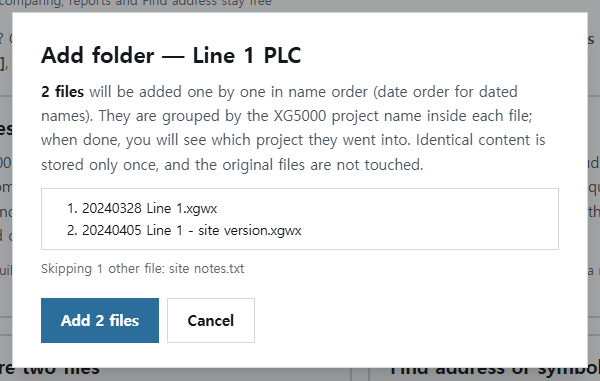
Rules worth knowing:
- Files are grouped into projects by the XG5000 project name inside each file. If that name is hard to recognize, use [Rename project]; later files of the same project still go there.
- Names that start with a date (for example 20260929 Line 1.xgwx) are stacked in date order, and that date is shown on the version. Without a date, the day the file was added is used.
- Files other than .xgwx, .xpd and .zip are skipped.
- The same content is stored only once. Add it again and Works says "Already added — same content".
- Your originals are never touched. Works stores copies on this PC and backs them up automatically once a day.
Only have two loose files? On the home screen, open [Compare two files], choose ① Older and ② Newer, and click [Compare]. Both are added, in that order, to one project, and the comparison opens.
2. Pick a version and compare
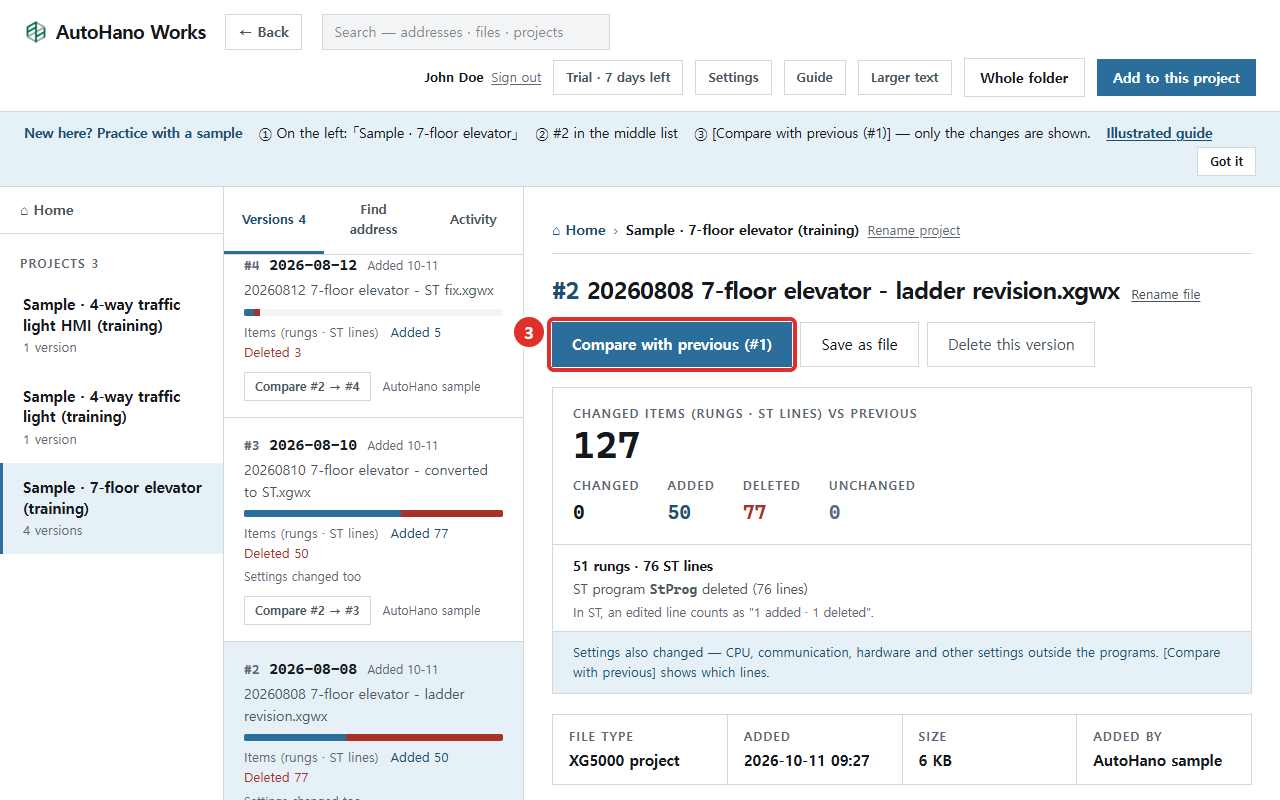
The middle column is the version list. Each version has a bar: black for changed, blue for added, red for removed (rungs and ST lines), and the longer the bar, the more that version changed. Click a version, then [Compare with previous (#1)]; the number is the version just before. To compare across several steps, use the button on a version, such as [Compare #2 → #4]. It always reads old → new.
3. Read the differences
The big number is the total of changed rungs and ST lines. Below it, the count is split into changed, added, deleted, comment only and unchanged. In ST, an edited line counts as "added 1 · deleted 1".
For each changed rung, the old and the new version are drawn as ladder, so you can read one against the other.
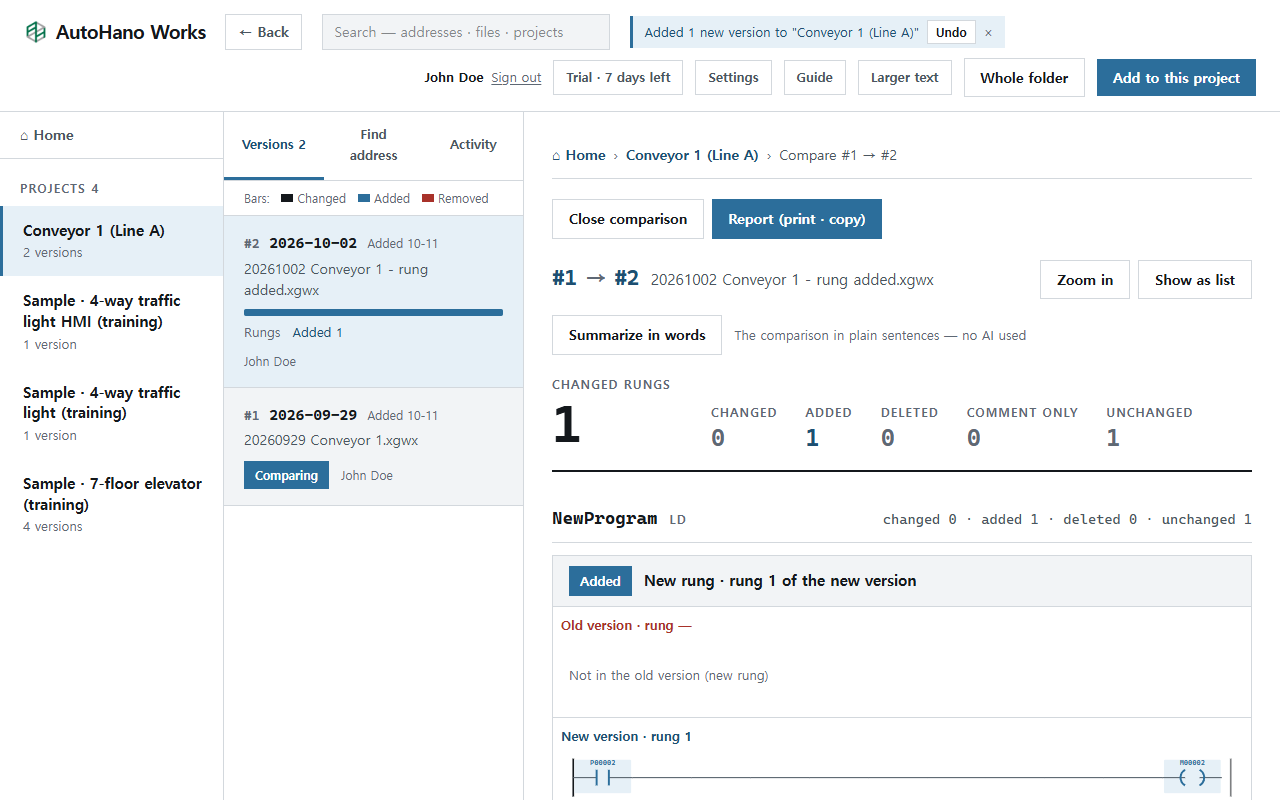
If settings outside the programs changed, they are listed under "Settings changed too", line by line: red − for the old value, blue + for the new. In the 7-floor elevator sample, #1 → #2 shows the CPU going from XGI-CPUE to XGK-CPUA.
[Summarize in words] writes the changes up as sentences, straight from the comparison. No AI is used.
4. Make the report
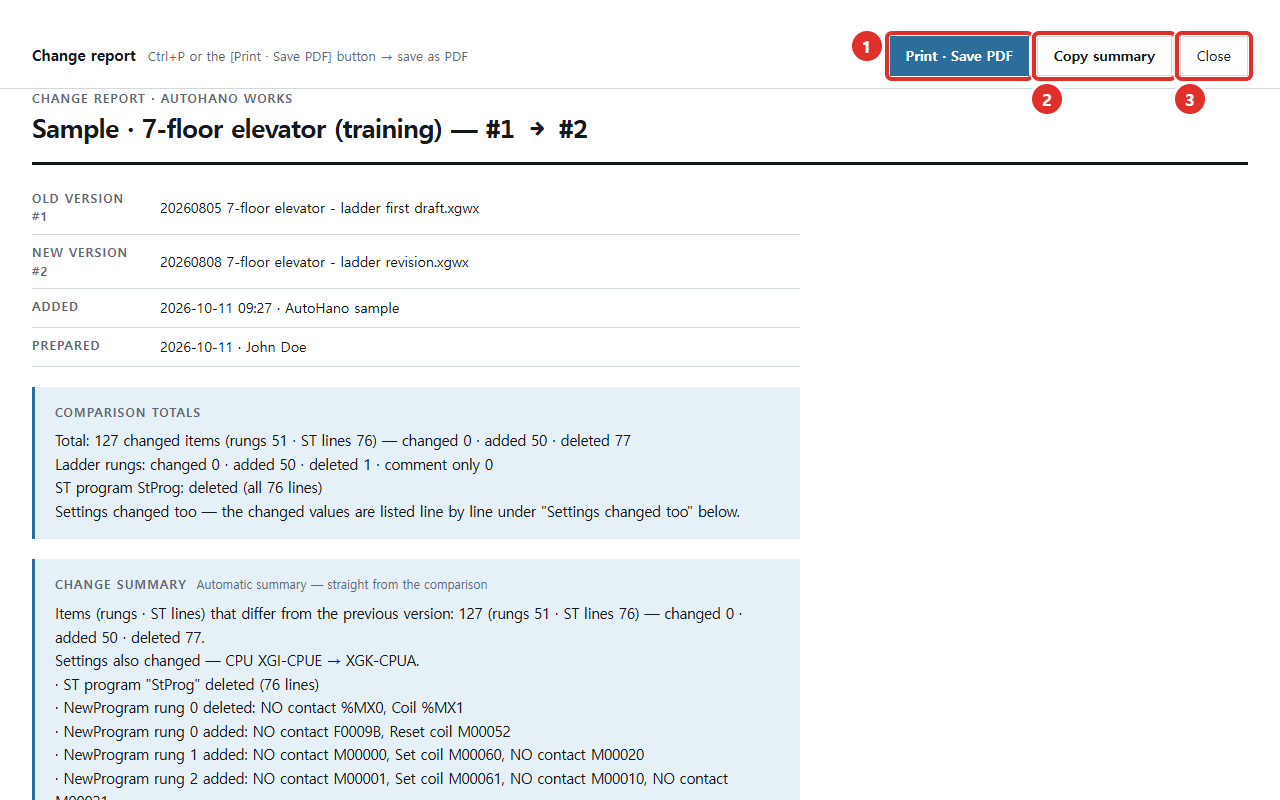
Click [Report (print · copy)]. The report shows the old and new versions, when they were added, who prepared it, the comparison totals and an automatic change summary.
- [Print · Save PDF] for paper or a PDF
- [Copy summary] to paste the changes into a message or email as text
- [Close] to go back
What it does not do
- It compares files, not the PLC. Works does not communicate with PLCs. To know what is in the PLC right now, read it out with XG5000, save it as a file and add that file.
- It tells you what changed, not why. Each version has a notes box. Write the reason down while someone still remembers it.
- Some parts are reported rather than compared. Programs in a language Works cannot compare, such as IL, are marked as not compared instead of being skipped silently. If settings changed but the line-by-line differences could not be read, Works says so and asks you to check in XG5000.
- XG5000 projects must be .xgwx. Save older formats such as .xgw again as .xgwx in XG5000 first.
History, comparison, Find address and reports are on the Free plan. Comparing XP-Builder HMI screens (.xpd) needs Starter or Unlimited, and works during the 7-day trial.
Try it on a sample first
Version control for PLC projects does not have to start with a new process. A folder of dated backups you already have is enough. Try [Compare with previous (#1)] on the 7-floor elevator sample, which has four versions, then drag in your own folder.