Inherited an XG5000 project? Let your AI read the ladder with you
Connect Claude, ChatGPT, Claude Code, Codex or Cursor to your XG5000 projects over MCP, ask what a rung does, and check the answer against the rungs.
Someone hands you the XG5000 project for a machine you have never seen, and the comments stop halfway through. Or it is your own program from three years ago. Either way, the first job is reading ladder and noting which coil drives which contact, before you dare change anything.
What Works does about it
AutoHano Works is a Windows app for LS ELECTRIC PLC projects (XG5000 .xgwx and XP-Builder .xpd). It is not an LS ELECTRIC product, and it has no AI built in. Instead, it lets the AI you already use read your projects over MCP: Claude Desktop, Claude Code, Codex or Cursor on your PC, or Claude and ChatGPT on the web.
Works breaks a project down into facts (rungs, contacts, coils, function blocks, addresses, device comments) and hands them to the AI as tool results. The AI answers from those facts, and the locations behind each answer come back with it, so you can check them.
Through Works, the AI can read:
- the project list, the version history and the differences between two versions
- ladder written out as text, rung by rung
- ST and IL source
- the variable and device table, with read and write counts and flags such as unused, no comment and multiple writes
- communication settings (Cnet, FEnet, P2P, high-speed link)
- the history of an address across versions
What "ladder as text" looks like
The ladder tool writes each rung as conditions and outputs. In its documented format, a rung reads like this (illustrative):
Rung 12: (P00000(Start) OR P00040) AND NOT P00001 → OUT P00040(Run)AND, OR and NOT follow the circuit as drawn. Text in parentheses is the comment from XG5000's variable/comment table. Rung numbers start at 0, in XG5000's rung order, and application instructions appear as the instruction and its operands, such as TON T0000 50.
From a line like that, the AI can answer "what does rung 12 do?" in plain words. An illustrative example, not real output: "Rung 12 is a start/stop latch. Start (P00000) turns on Run (P00040), Run holds itself through its own contact, and P00001 turning on drops it out."
Step by step
1. Connect your AI
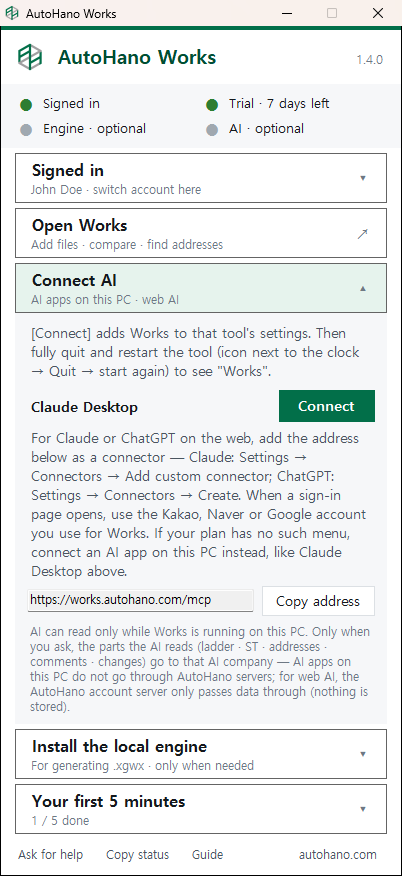
Claude Desktop. In the launcher window, open [Connect AI] and press [Connect] next to Claude Desktop. Quit Claude Desktop completely, including its icon next to the clock, and start it again. Works then appears in Claude's tool list.
Claude Code. One line in the terminal:
claude mcp add --transport http autohano-works https://works.autohano.com/mcpCodex and Cursor. The command for connecting them on your PC is in [Settings → Connect AI], with a copy button.
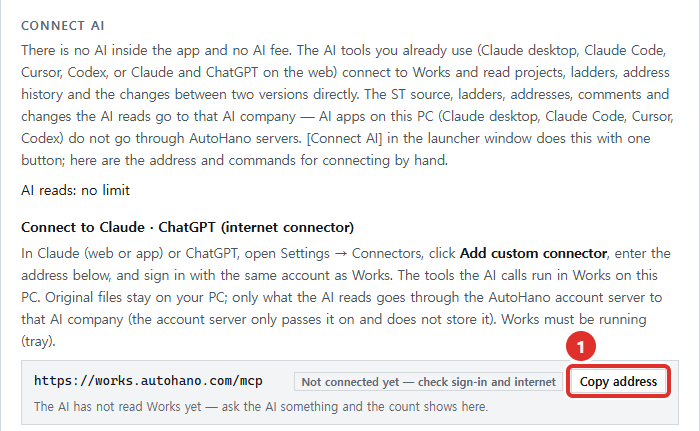
Claude or ChatGPT on the web. In [Settings → Connect AI], press [Copy address] (https://works.autohano.com/mcp). In Claude, go to Settings → Connectors → Add custom connector; in ChatGPT, Settings → Connectors → Create. Paste the address and sign in with the account you use for Works. Custom connectors are often limited to paid plans, so check each company's help pages.
Whichever you use, Works has to be running on your PC, and the connection needs internet.
2. Ask
The training samples are enough to start:
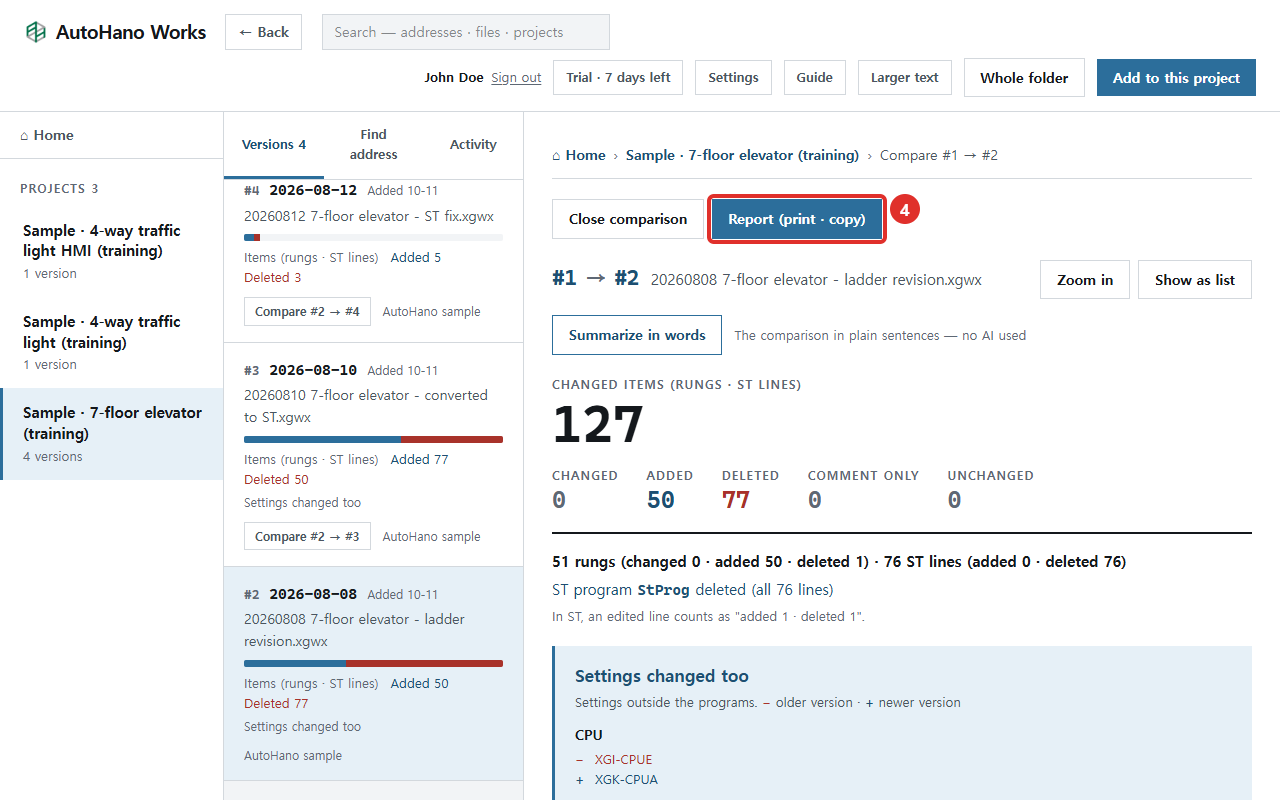
- In the 7-floor elevator sample, explain simply what changed between #1 and #2
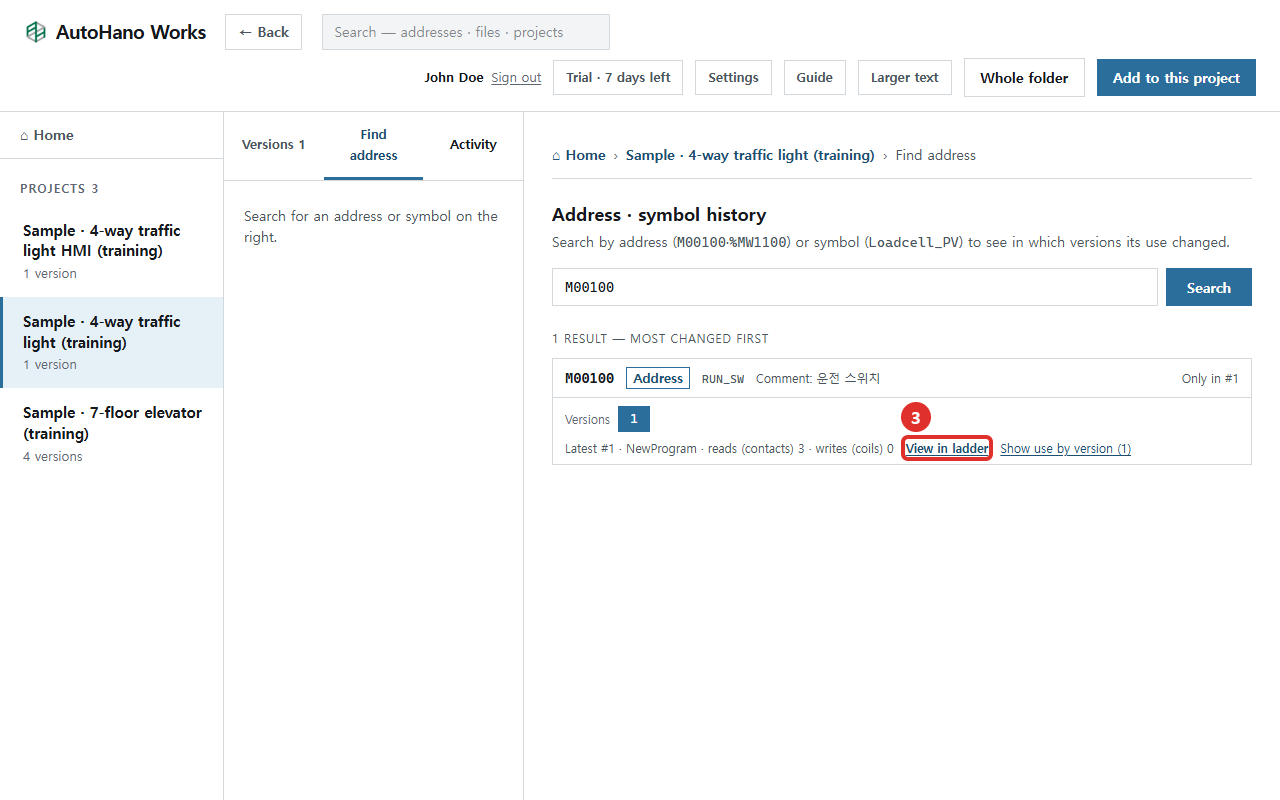
- Find where M00100 is used in the 4-way traffic light sample
- Explain what the first rung of the 4-way traffic light sample means
For your own file, tell the AI where it is, for example "Analyze D:\PLC\Line2.xgwx". It adds a copy to Works and reads it; the original file is not changed. Then try questions like these:
- Where is %MW1100 written, and since which version?
- Organize the variables, and tell me which ones are unused or have no comment
- Summarize the communication settings, including the addresses exchanged with the inverter and HMI
3. Check the answer against the ladder
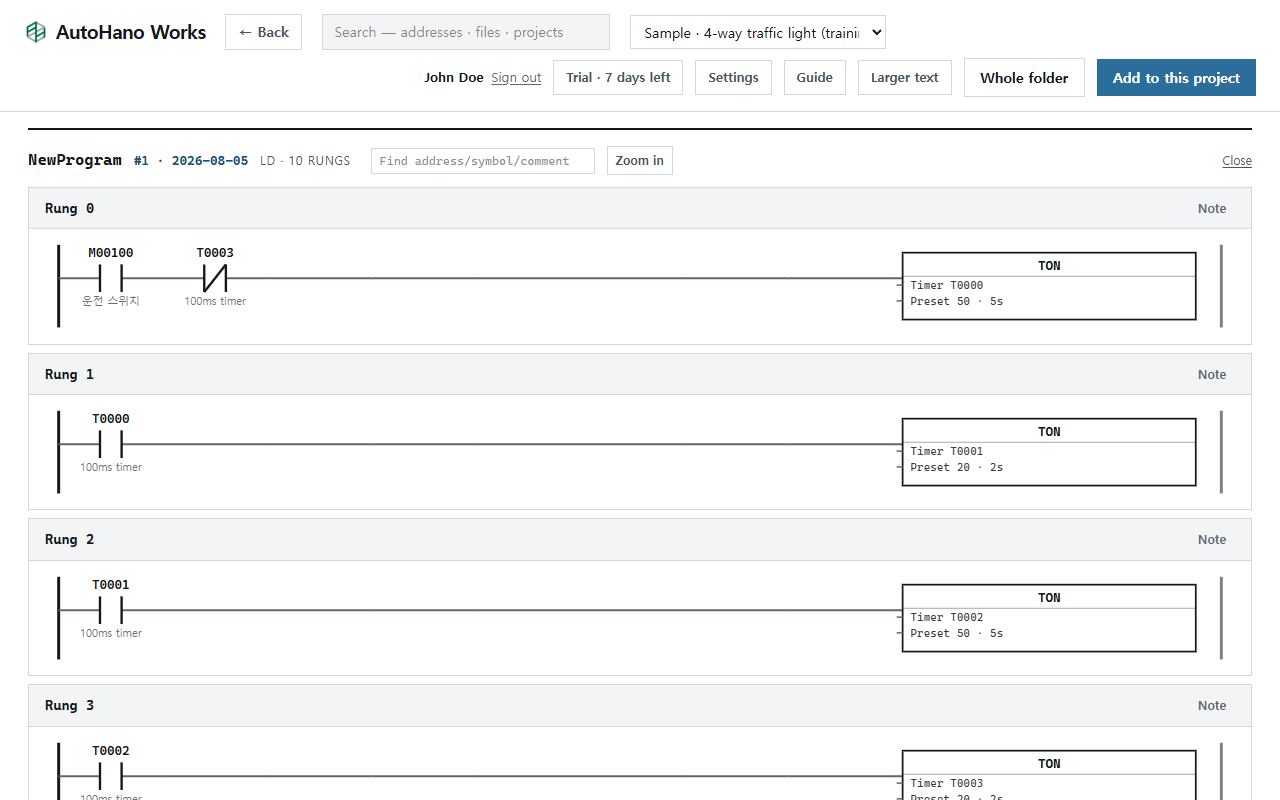
The answer names rungs, so look at them. On the version screen, click the program name and Works draws the ladder, with device comments under each contact and coil. Type an address into the box above the ladder to see only the rungs that contain it. Or open the project in XG5000, which is where any change gets made anyway.
Limits, plainly
- AI answers are for reference. People decide, and people apply changes in XG5000. Check in XG5000 yourself before anything goes onto real equipment.
- Works does not change your project. It never edits the files you add and never writes to a PLC. The AI writes explanations, suggestions and drafts.
- What goes where. Your files stay on your PC and are not uploaded to a server. When you ask, the parts the AI reads (ladder, ST, addresses, comments, changes) go to the AI company you connected. AI apps on your PC do not go through AutoHano servers; with Claude or ChatGPT on the web, the AutoHano account server passes the data through and does not store it. On no plan does AutoHano look at the logic in your files or use it to train AI. If company rules or a customer contract say a project must not leave the company, do not ask an AI about it.
- Some older files read less exactly. When Works cannot read a ladder's vertical connections from the file, it lists each row instead and says so, and an OR branch may show up as a neighboring rung. If circuit boundaries matter, check them in XG5000.
The AI is billed by your AI tool, not by AutoHano. The Free plan includes 10 AI reads a month; one read is a 30-minute window, however many tool calls the AI makes in it. When they run out, comparison, Find address and the ladder view in the app keep working.
Where to start
The point is not to hand the machine to an AI. It is to get from "what does this program do?" to "these are the rungs to look at", with rung numbers you can check. Start with the samples, then try a project you already know well, where you can tell a good answer from a bad one.